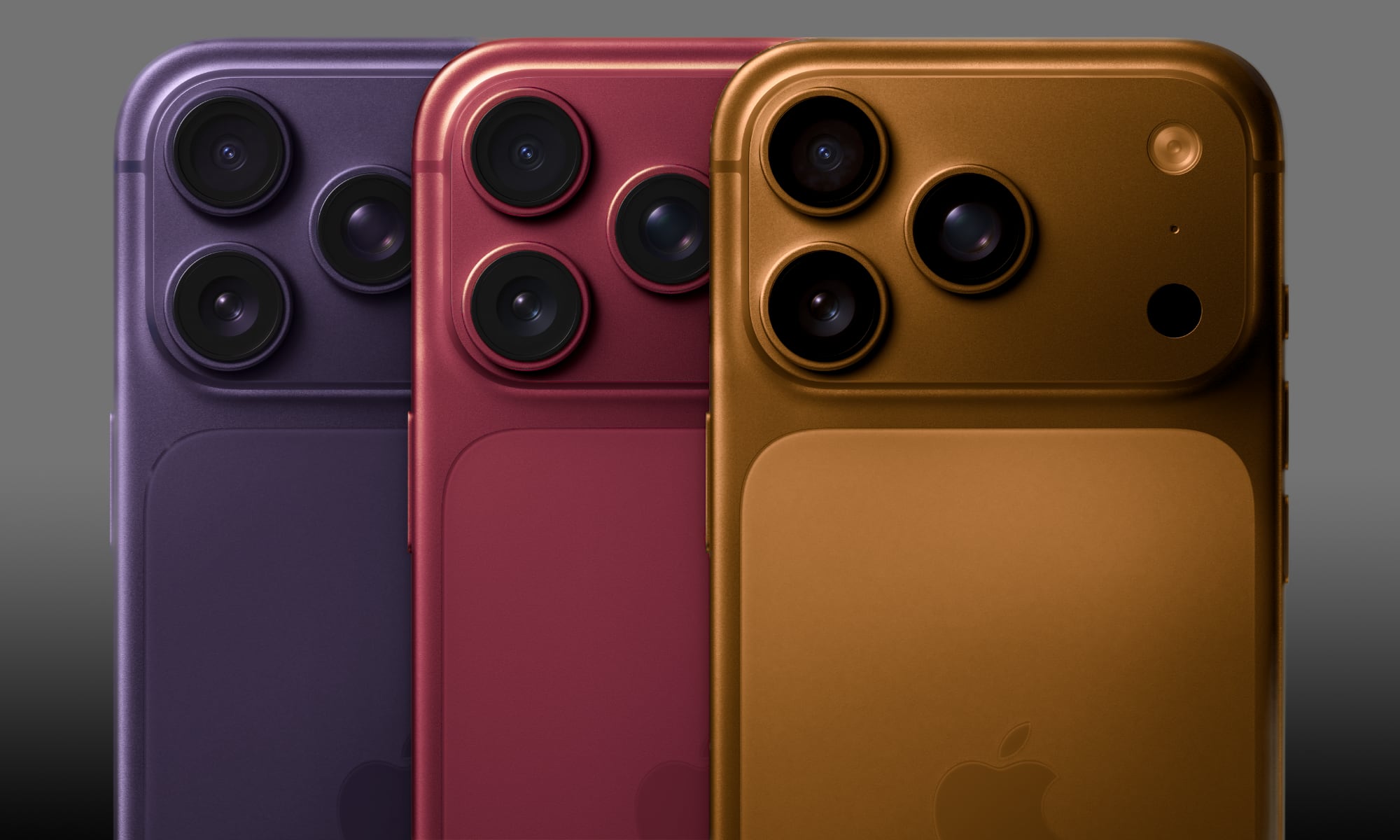
A new iPhone that cannot hold a call is alarming, but the cause is usually mundane: the line did not finish provisioning, the carrier settings never updated, or an eSIM transfer half-completed. Hardware faults exist and do happen, but they are the last thing to suspect, not the first. Here is the order to work through, cheapest and fastest first, and the point at which the problem stops being yours to fix.
Step 1: The five-minute checks
- Restart the phone. Genuinely: a large share of post-transfer cellular faults clear here and nowhere else.
- Check for a carrier settings update: Settings, General, About. Wait on that screen for fifteen seconds; if an update exists, a prompt appears.
- Check for an iOS update. Launch-window cellular bugs are common and usually fixed in the first point release.
- Toggle Airplane Mode on, wait ten seconds, off. This forces a fresh network registration.
- Confirm the line is actually enabled: Settings, Cellular. A transferred eSIM can appear present but be switched off.
Step 2: If it says No Service or SOS after a transfer
This is the most common single complaint after an upgrade, and it is an eSIM provisioning problem far more often than a signal problem. The old device's line was released but the new one never completed activation, so the phone has no credential to register with.
- Open Settings, Cellular and look for a line marked as needing activation: tap it and follow the prompt.
- If the line is missing entirely, the carrier has to re-issue the eSIM. This cannot be fixed from the handset.
- Do not factory reset to solve this. It does not restore a released eSIM and costs you an hour.
- If the old phone still has the line active, keep it powered on until the new one works: it is your fallback.
Step 3: If 5G is missing
- Check Settings, Cellular, Cellular Data Options, Voice & Data: 5G On or 5G Auto must be selected.
- Confirm your plan includes the 5G tier you expect. Some prepaid and entry plans are limited to a slower 5G layer, and no setting overrides that.
- Low Data Mode and Low Power Mode both restrict network behaviour. Turn them off while testing.
- Remember that MVNO lines can be deprioritised on a busy tower, which looks exactly like a slow connection and is not a fault.
Step 4: If calls drop but data works
That pattern points at voice provisioning rather than radio hardware. Check that Wi-Fi Calling and VoLTE are both enabled — on modern networks, voice runs over the data network, and a line provisioned without VoLTE will drop calls while data behaves perfectly. Both settings live under Settings, Cellular. If VoLTE is missing as an option entirely, the line needs a carrier-side fix.
Before you visit a store
- Note whether the problem follows the line or the phone — put the eSIM on another device if you can. This single test tells the technician more than any description.
- Record when and where it happens. Intermittent faults are diagnosed from patterns.
- Check your return and exchange window and stay inside it.
- Back up before any appointment; a store's first move may be a restore.
Frequently asked questions
Why does my new iPhone say No Service after transferring from my old one? +
Will a factory reset fix cellular problems? +
Why is my iPhone on 5G but slow? +
Calls drop but data is fine: what is that? +
How do I know if it is the phone or the network? +
Keep reading
All guides


One email when a carrier raises rates, drops a plan, or launches a deal worth switching for. No spam, unsubscribe anytime.

Jean writes ShopCellPlans' reviews. He compares carrier plans using each carrier's own published prices, its FCC broadband labels and reporting from named outlets, and ranks them on the bill you actually get, taxes and fees included, not the price on the ad.